


Meet AndroMeld
AndroMeld brings your Android phone and Mac together. Reply to phone messages with your Mac keyboard, organize photos in Finder, and put phone apps and widgets on your desktop. Connect your phone and keep going on the computer you know.
Your first connection
You’ll need a Mac running macOS 15 or later, a phone running Android 12 or later, and a USB cable that supports data transfer.
- Install AndroMeld on your Mac. In your phone’s Settings, enable Developer options and turn on USB debugging.
- Connect the devices with the data cable and allow USB debugging for this computer on your phone.
- Follow the Mac prompts to install the phone helper app. Once connected, open the device to browse files or view Phone Screen.
Do I need to root my phone?
No. AndroMeld uses Android’s debugging authorization to connect. Enable USB debugging and approve the computer using the steps above.
Can I connect without a cable?
Yes. AndroMeld supports Wi-Fi connections. Open Wi-Fi pairing in the Mac app, put the Mac and phone on the same network, and follow the pairing steps.
On Android 14 or later, you can also activate AndroMeld on your phone through Wireless debugging or Shizuku, then approve a nearby connection from your Mac. Nearby discovery uses Bluetooth; files and screen content travel over the network. You can also follow the app’s prompts to turn on your phone’s hotspot when needed.
Can I use a Windows or Linux computer?
Yes. AndroMeld Web opens phone apps in your browser and lets you transfer files and view notifications. Activate AndroMeld on a phone running Android 14 or later, enable browser access, then open the connection link on your computer. See AndroMeld Web for the full steps.
Apps and screen mirroring
Open phone apps on your Mac
Open Phone Screen to view and control your phone on Mac. With Android 14 or later, Meld Mode also gives each phone app its own Mac window.
- Keep several apps open. Resize windows and place them side by side. Your phone can still handle other tasks.
- Use your keyboard and trackpad. Type, scroll, and zoom into photos from your Mac.
- Keep favorite apps close. Find them in Spotlight, add desktop shortcuts, or hand off the app you’re using on your phone.
Can I use my Mac’s input method?
Yes. AndroMeld sends text from your Mac’s input method to the phone app and also supports macOS Dictation. Click a text field in the phone app and type as usual.
Can every app use landscape orientation?
No. The app itself needs to support landscape. Some messaging and social apps only have a portrait layout. Rotate windows for apps that support it and keep the others in portrait.
Can phone apps use my Mac’s camera and microphone?
Yes, on supported devices running Android 16 or later. Meld Mode can provide your Mac’s camera and microphone to phone apps. Enable the camera or microphone in the window menu and approve access on your Mac. On earlier Android versions, use the phone itself to take photos or make calls.
Can I capture or record any screen?
No. Some apps protect videos or sensitive pages, and Android prevents those screens from being captured. For other screens, use the window toolbar to take a screenshot or record. For protected content, use the original app’s save, download, or share options.
Files
Your phone files, in Finder
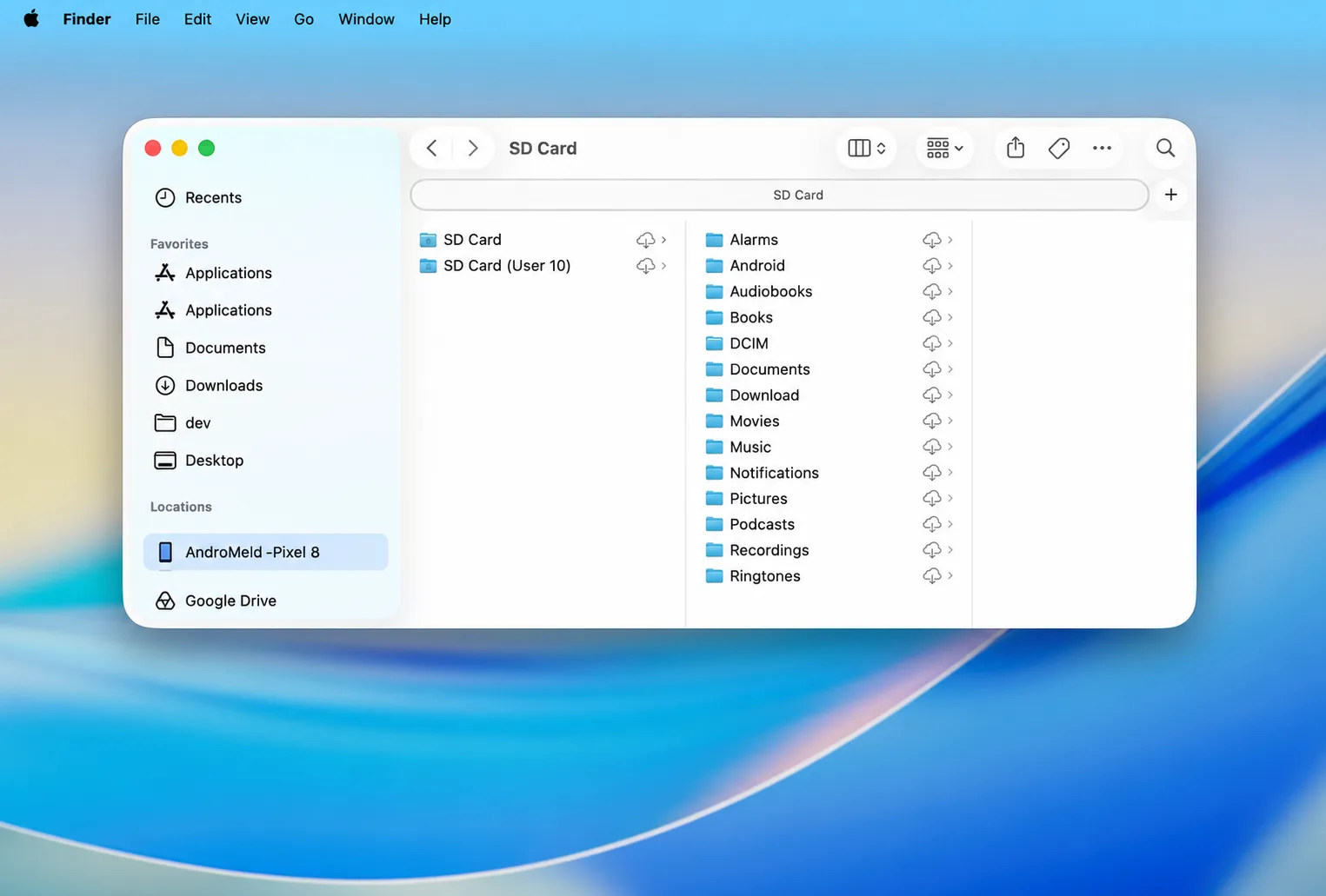
Once connected, open your phone in the Finder sidebar to browse photos, albums, and storage volumes. Copy, rename, and move files with the Mac actions you already know.
- Drag between phone and Mac folders to transfer files in either direction.
- Select a file and press the space bar to preview it with Quick Look.
- Mac system files such as
.DS_Storeare filtered out during transfers to keep phone folders tidy.
Keep things moving
Copy, reply, and share
- Copy across devices. Copy text or an image on your phone or Mac, then paste it on the other device.
- See messages as they arrive. Phone notifications appear in Mac Notification Center. Copy verification codes straight from the banner.
- Send files to phone apps. Choose Send to Android in the Mac share menu, or drag a file into a phone app window.
Can I reply directly from a Mac notification?
Yes, if the phone app offers a notification reply action. AndroMeld brings the app’s actions into the Mac notification. Type in the reply field when it appears. If there’s no reply option, open the phone app to respond.
Can I drag files out of phone apps?
Yes, with Android 16 or later and an app that supports drag and drop. The phone app provides this action, as Google Photos and Files by Google do. Press and hold a file, then drag it onto your Mac. For other apps or earlier Android versions, transfer files through Finder.
Install apps
Take a look before you install
Open a package on your Mac to check its permissions, signature, and compatibility before installing it on your phone. AndroMeld supports APK, APKS, APKM, and XAPK, including packages made up of multiple APKs.
AI assistance
Let AI use your phone
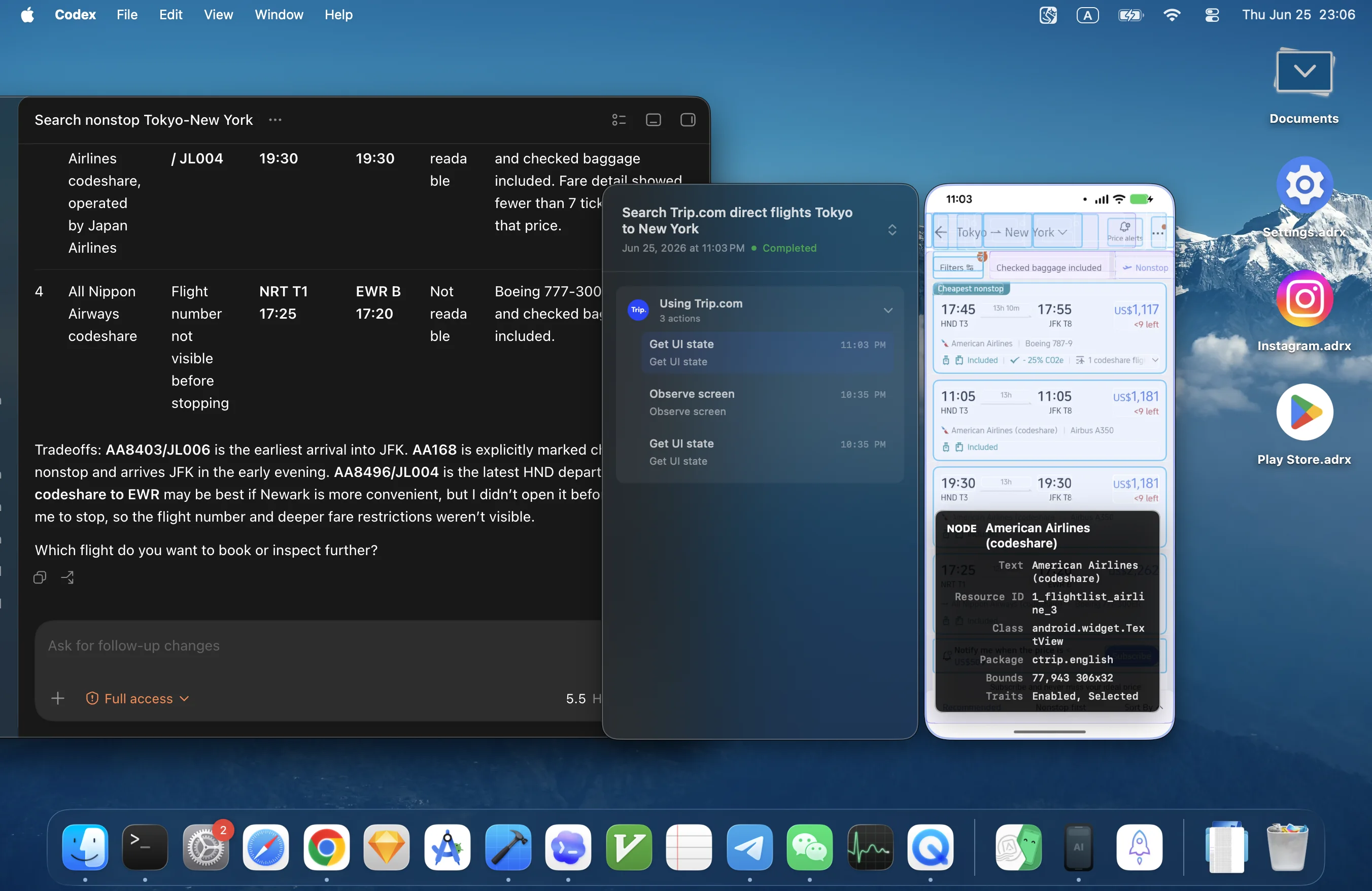
Through AndroMeld’s MCP connection, an AI assistant can view your phone screen, open apps, tap, swipe, and type.
- Enable MCP control in AndroMeld Settings and copy the client configuration.
- Add the configuration to an AI assistant that supports MCP, then tell it what you want to do on your phone.
- Review its activity in AndroMeld and stop control whenever you need to.
Use your phone camera for meetings
A phone running Android 12 or later can provide video to Zoom, FaceTime, and other Mac apps. Choose either the front or rear camera.
- Install the camera extension in AndroMeld Settings, then approve it in System Settings → General → Login Items & Extensions.
- Keep your phone connected and AndroMeld running, then choose AndroMeld in your video app’s camera list.
- During use, click the camera icon in the Mac menu bar to switch phones or lenses.
Does installing the camera extension need administrator access?
Yes. macOS requires an administrator to approve this type of system extension. Enter administrator credentials when prompted. On a managed computer, ask your administrator to help install it. If macOS asks for a restart after an extension update, restart your Mac before using it.
Can I also use the phone’s microphone?
No. The camera extension currently provides video, without phone microphone audio. In your meeting app, select the Mac’s built-in microphone, a headset, or another external microphone.
AndroMeld doesn’t appear in my video app
Check that the camera extension is approved and your phone is still connected. Then quit and reopen the video app and check its camera list again.
Answer calls on Mac
Enable Phone Calls in AndroMeld Settings to answer, decline, mute, or end calls. You can also enter a phone number in app search to dial it. Calls require Android 13 or later.
Can every phone use the Mac’s speaker and microphone for calls?
No. Sending call audio to Mac depends on the phone’s system support. On supported phones, switch audio in the call controls. If you can’t hear the call on Mac, switch back to the phone to keep talking.
Phone widgets on your desktop
Connect a phone running Android 14 or later, open Widgets for the device, and choose Add Widget. Right-click or press and hold a widget on your Mac desktop to adjust its settings.
Do widgets keep working when the phone disconnects?
No. Widget content and actions come from your phone, so it needs to stay connected. Reconnect your phone to keep using the desktop widgets.
On macOS 27 or later, you can also change tracks and pause Android music in Mac Control Center. On earlier macOS versions, open the music app’s window to control playback.
Find the files taking up space
Open storage analysis for your device to see usage by folder and app. Find large files, check what they contain, then decide what to keep or clear. You can also browse photos, albums, and storage volumes in Finder.
Connect even when your phone is elsewhere
- Pair your phone locally and connect successfully at least once.
- Leave the phone online with the AndroMeld service running.
- Select the phone in Remote Connection on your Mac and click Connect.
Can I connect from a different Wi-Fi network?
Yes. Remote Connection tries to connect the devices directly over the internet. Follow the steps above to try it. If the two networks can’t connect directly, set up a relay on your phone and try again. See relay setup for details.
Free use and purchases
Choose what you need
The free Mac app includes every feature. These two activities have weekly allowances:
| Free | Pro | |
|---|---|---|
| New Phone Screen or Meld Mode windows | 30 total per week | Unlimited |
| Send files to the phone through Finder | 5 GB per week | Unlimited |
| Browse and read files in Finder | Unlimited | Unlimited |
| Notifications, clipboard, camera, widgets, and more | Included | Included |
Allowances reset at Monday 00:00, shown in your current time zone and equivalent to Monday at midnight in Beijing. Windows count when first opened, not by how long you use them. Returning to an existing window or reconnecting it doesn’t count again.
Will open windows or transfers stop when I use up my allowance?
No. The allowance only affects new windows and new Finder writes. Open windows stay usable and transfers in progress finish. To open more windows or send more files, wait for the weekly reset or choose Pro.
How do I buy or restore Pro?
Purchase in the Mac app. Pro removes the two allowances above and offers three options: $3.99 for 3 months, $10.99 per year, or $21.99 for lifetime access. These are U.S. reference prices; check the Mac App Store checkout for your local price. On another Mac, restore purchases with the Apple ID you used to buy Pro.
Do I need Pro for the web app?
No. Browser features are free. Activate and connect your phone, then open AndroMeld Web.
How do I set up a relay?
A relay helps devices connect remotely when a direct connection isn’t available. Sign in with Google in AndroMeld on your phone to receive 100 MB of free relay data, then buy data packs through Google Play as needed. You can also enter your own relay server address. USB, local network, and direct peer connections don’t use relay data.
Does Pro for Mac include relay data?
No. Pro covers window and file transfer allowances on Mac. Relay is a separate service based on data usage. When you need it, choose a data pack or configure your own server on the phone.
When something needs a fix
Connection and display
My phone doesn’t appear over USB
Unlock your phone, check that the cable supports data transfer, and confirm that USB debugging is on and the computer is authorized. Some phone brands also need these settings:
- Huawei / HarmonyOS: In Developer options, turn off Monitor apps installed by ADB and turn on Allow ADB debugging in charge-only mode, then try USB again.
- Xiaomi / HyperOS: Enable Install via USB, USB debugging (Security settings), and Allow simulated input so AndroMeld can install the helper and send keyboard and trackpad input. If you see
INSTALL_FAILED_USER_RESTRICTED, allow installation in Settings → Permissions → Install via USB. - Meizu: If the connection is unstable, switch USB mode to MTP and reconnect.
- LG: After connecting, try switching to Charging mode and enabling Allow mock locations.
Can HarmonyOS phones connect wirelessly?
No, not currently. HarmonyOS handles the Android interfaces needed for wireless connections differently. Use USB with the Huawei / HarmonyOS settings above. If you still can’t connect, email your phone model and system version so the issue can be investigated.
Wi-Fi pairing can’t find my phone
Put your Mac and phone on the same Wi-Fi network and leave the phone’s Wireless debugging pairing screen open until pairing finishes. A guest network or the router’s AP isolation setting may prevent discovery. Try the main network or connect over USB first.
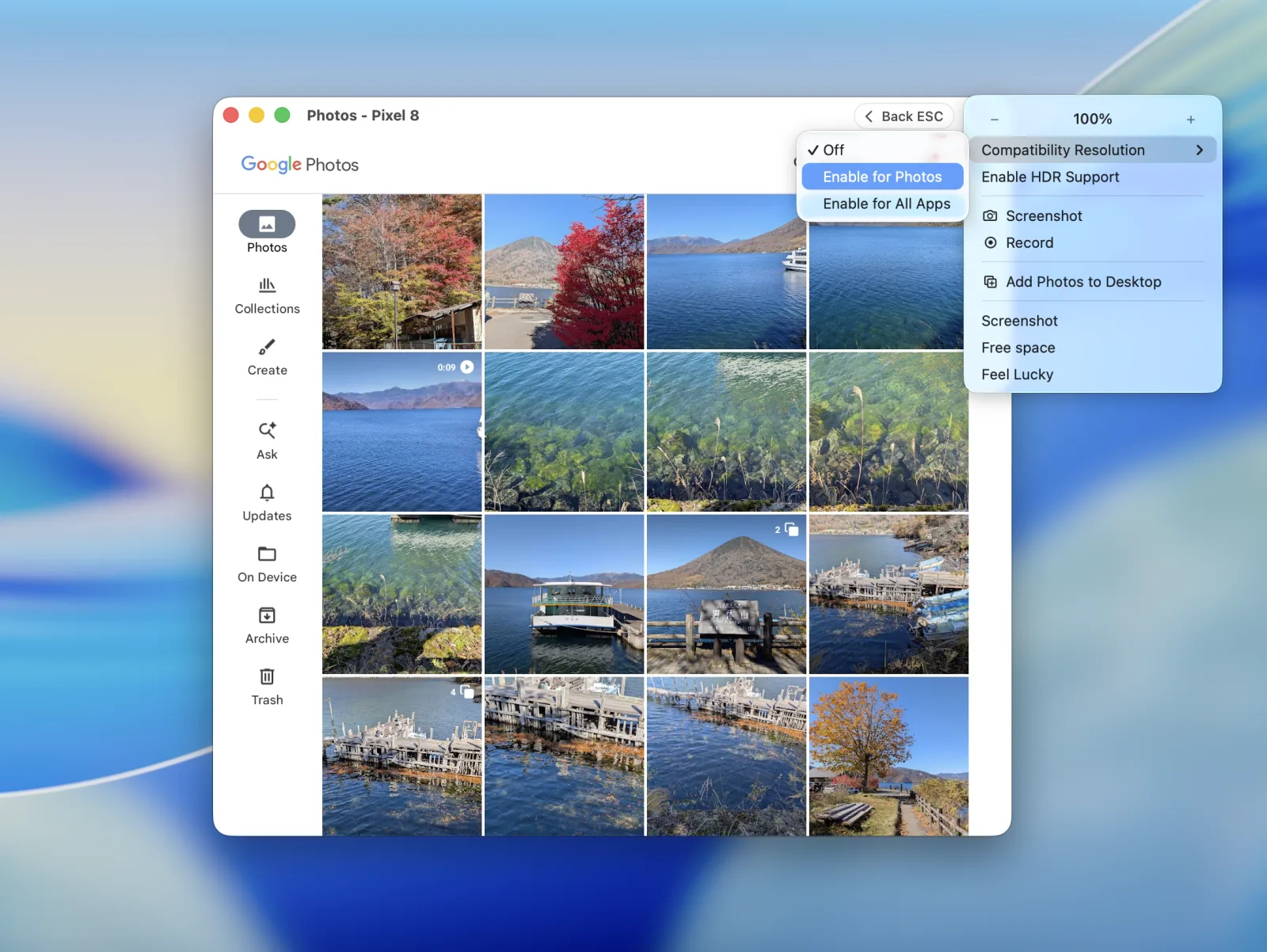
Text looks too large, too small, or blurry
Turn on Compatible Resolution in the app window menu to redraw the app at a density suited to the window. Apply it to the current app or to all windows. It turns on automatically for apps known to need it.
Connections and privacy
Do I need to create an account?
No. USB and local network connections run directly between your devices. Install, pair, and approve access to start using AndroMeld. Optional Google sign-in is for the phone’s relay service.
Are files and screen content automatically backed up to the cloud?
No. Local and direct peer connections transfer content between your devices. A remote relay forwards encrypted traffic without keeping a backup of files or screens. Save files or recordings you want to keep in a location you choose.
How do I remove access for a computer or browser?
Find the device in your phone’s paired client list and revoke its access. Approve only the computer or browser you intend to use. When using AI through MCP, choose which clients can access the phone.
Contact and feedback
Share a question or an idea
AndroMeld is made by independent developer Catching Now. If you run into a problem or have a feature idea, email the developer.
For a problem report, include your macOS version, phone model, Android version, and connection type. Describe what you were doing and what happened to help narrow down the cause.
You can also share your experience on the Mac App Store.